iPhone trick: Here's how to hide photos in your iPhone photo gallery
August 14, 2019•1 min read
If you're like me, you've gone into your iPhone to show someone a photo, and as you scroll through the thousands of images, you realize you didn't delete those photos. Yes, you know what I'm talking about (actually, I'm talking about my son's knee after surgery. What are you talking about?).
Whatever you're trying to hide, know this: you can actually hide them in your iPhone gallery versus delete them, which is pretty handy if you've got photos on your phone you want to keep but, maybe hide from people (nosy kids, included).
Related: How to search your photos quickly with multi-keyword search
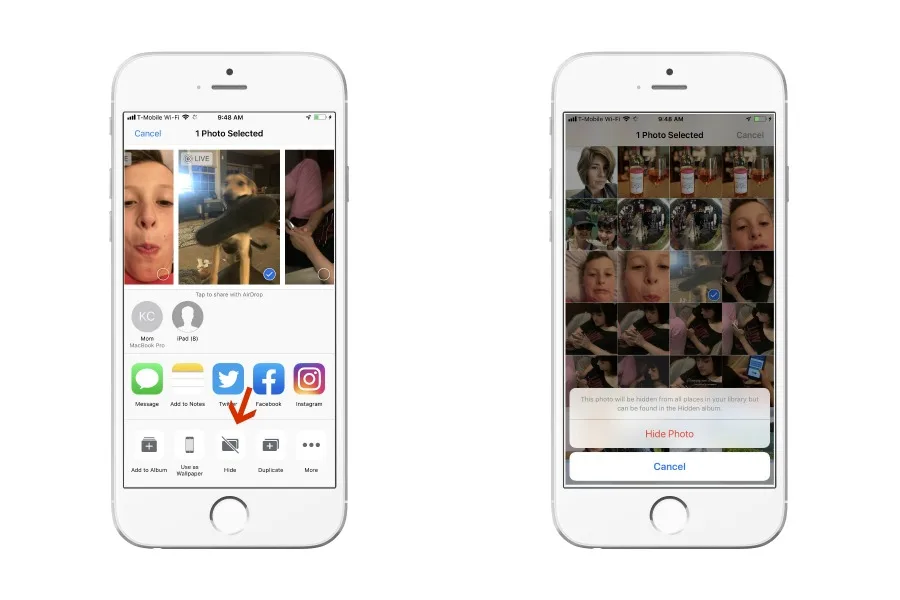
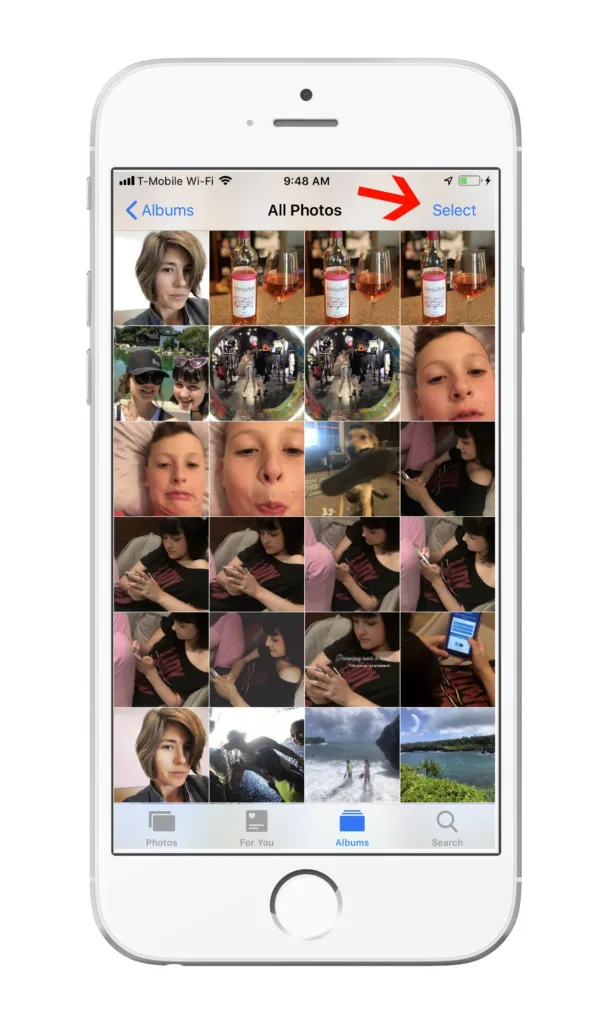
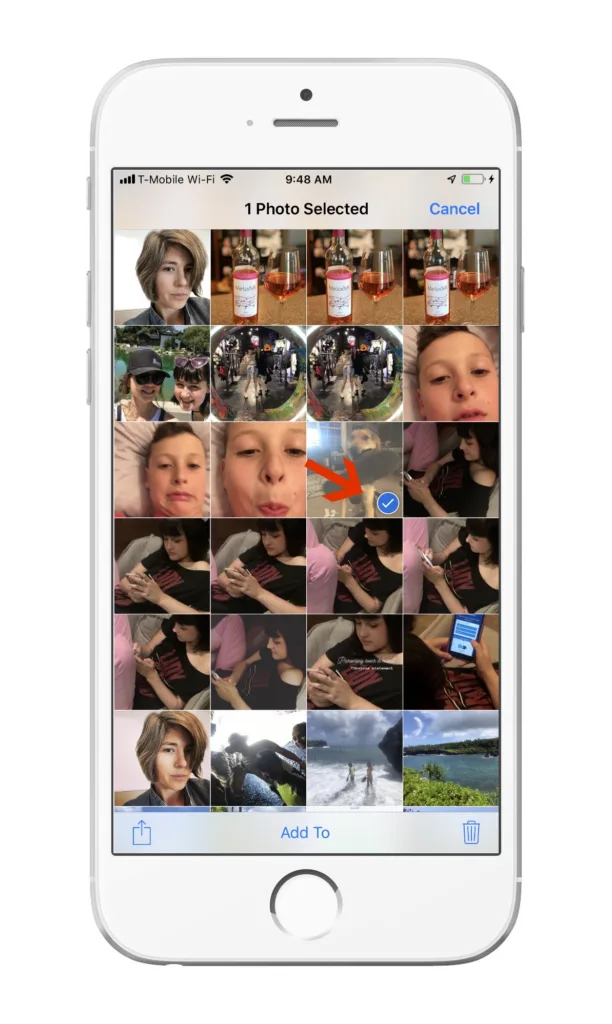
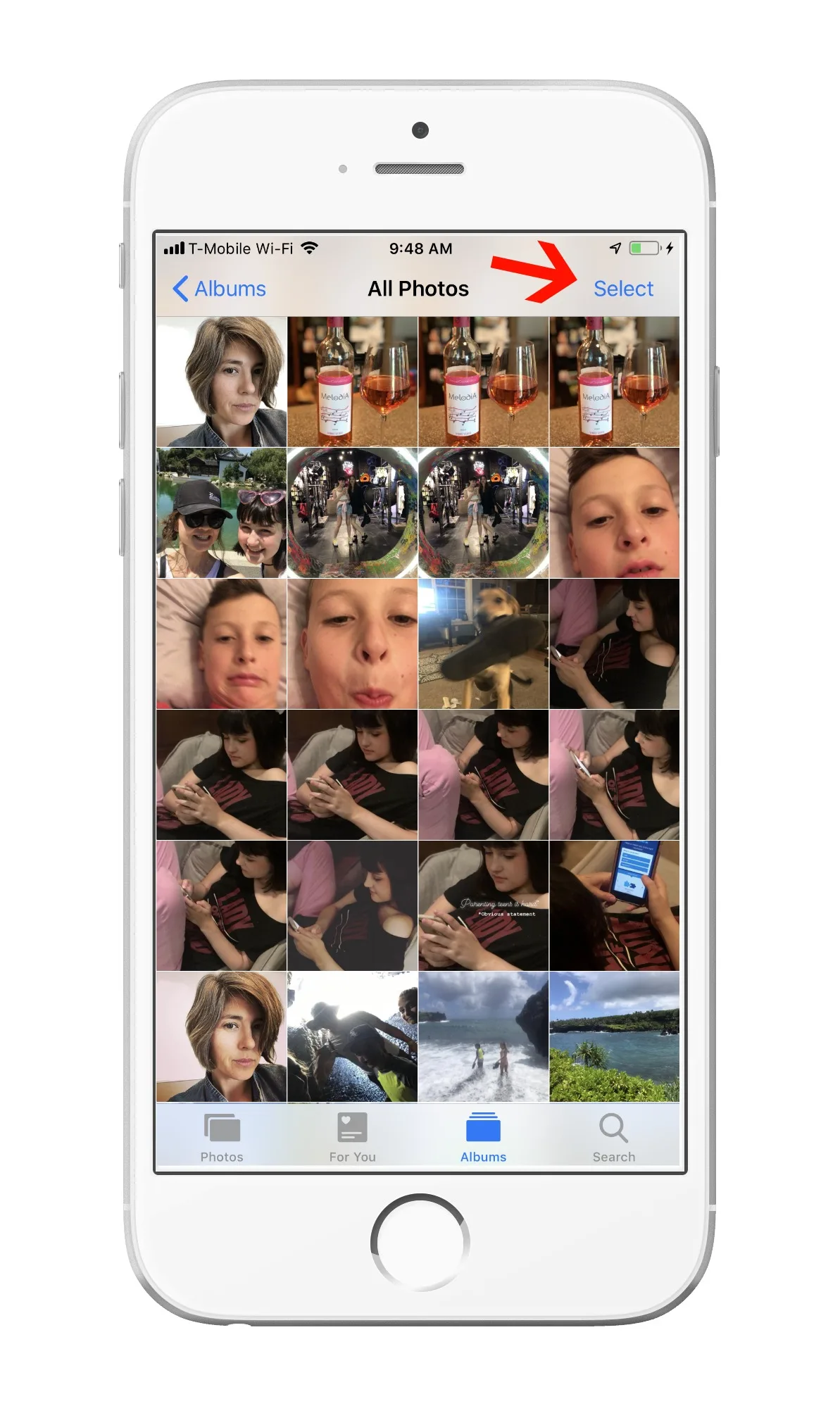
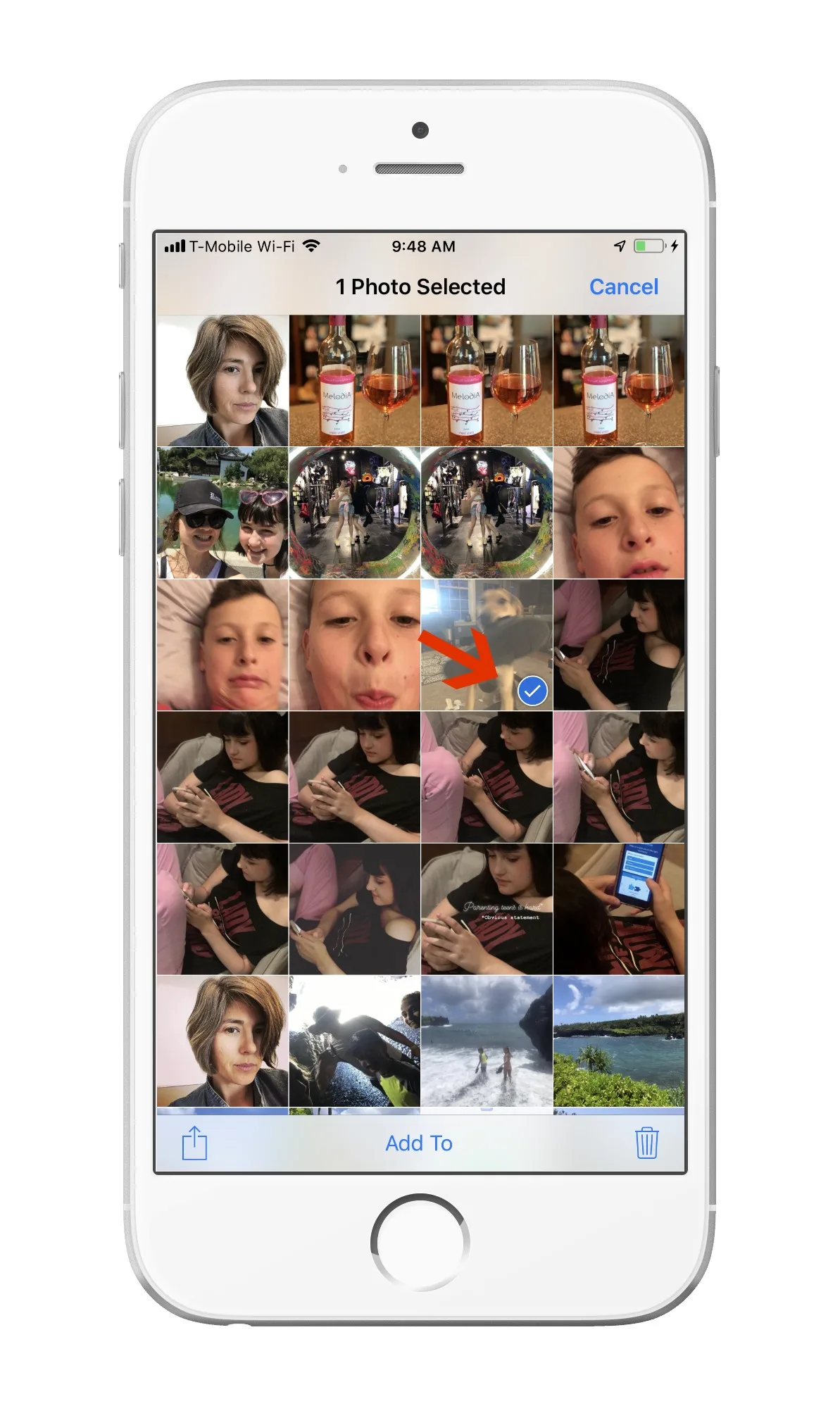
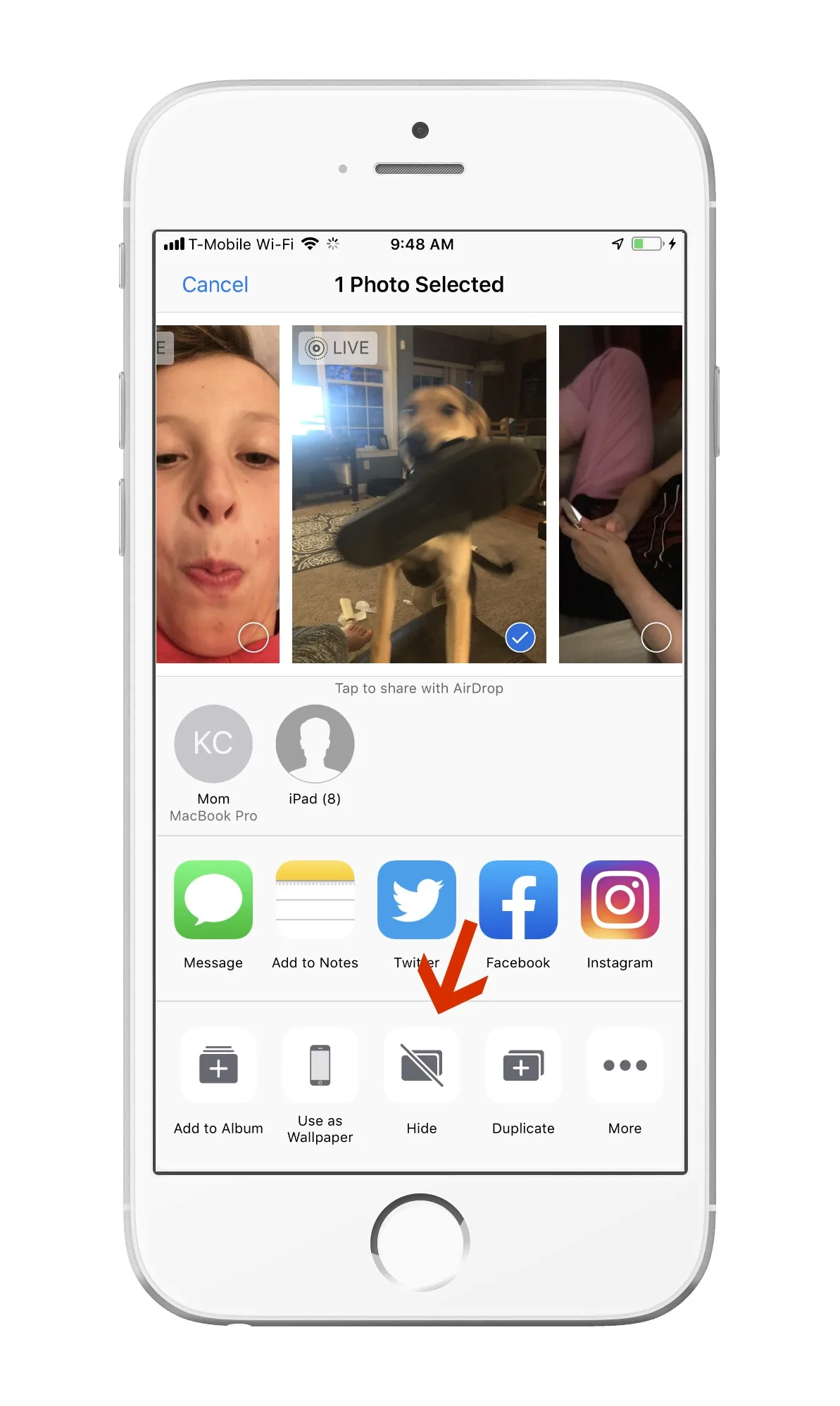
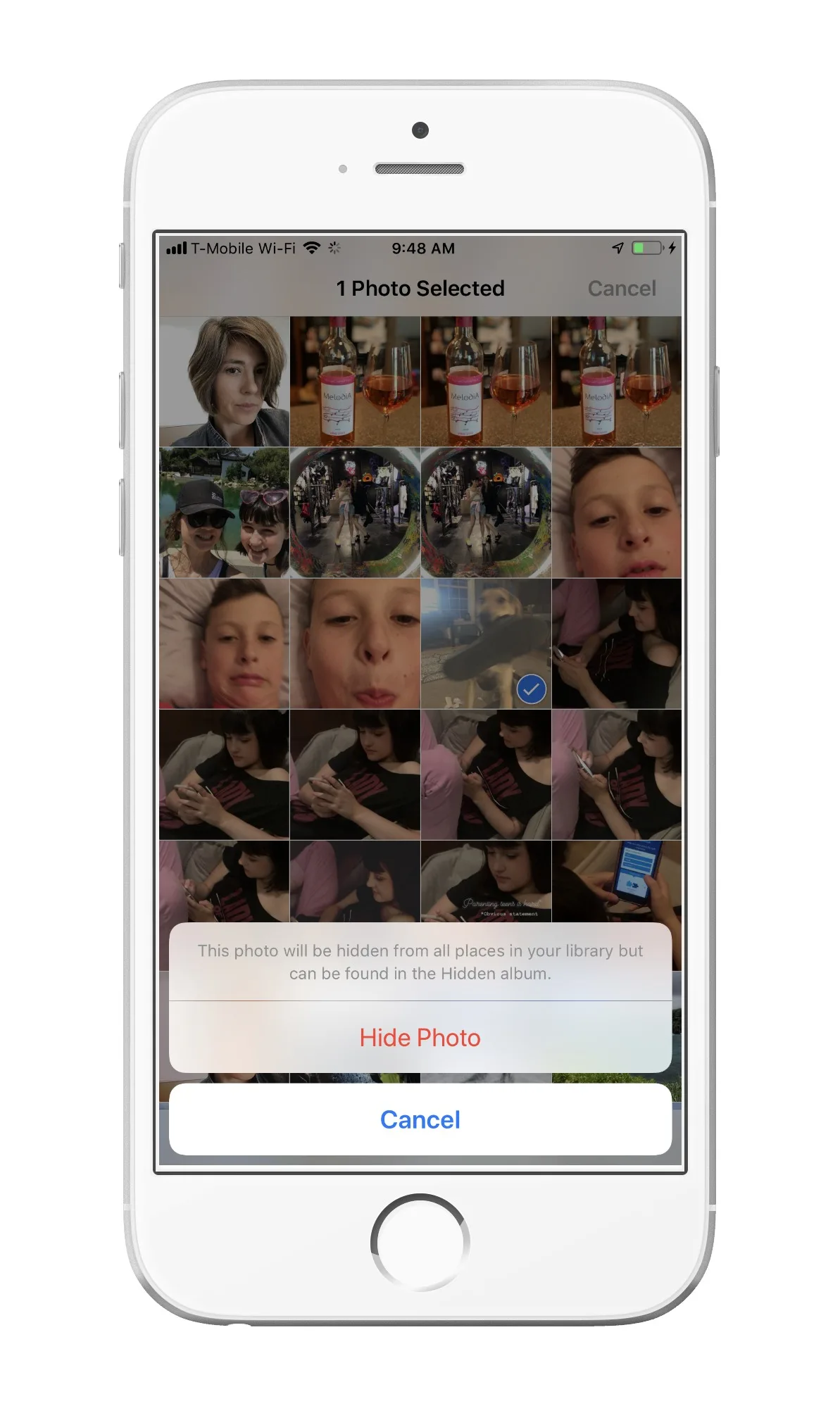
Here's how to hide photos in your iPhone photo gallery
Related: How to take great photos of your kids? Use this trick my teen taught me.
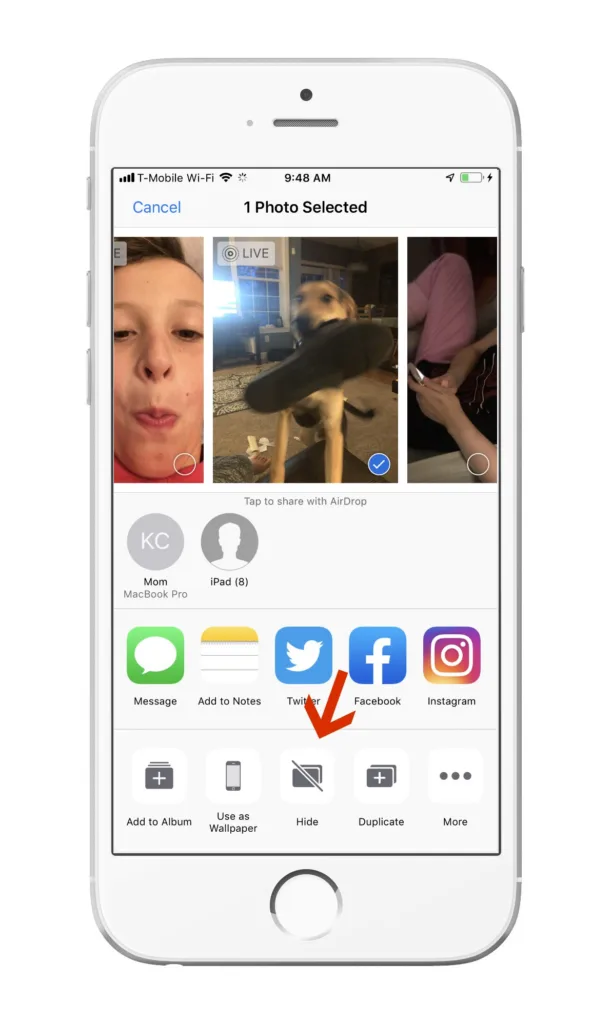
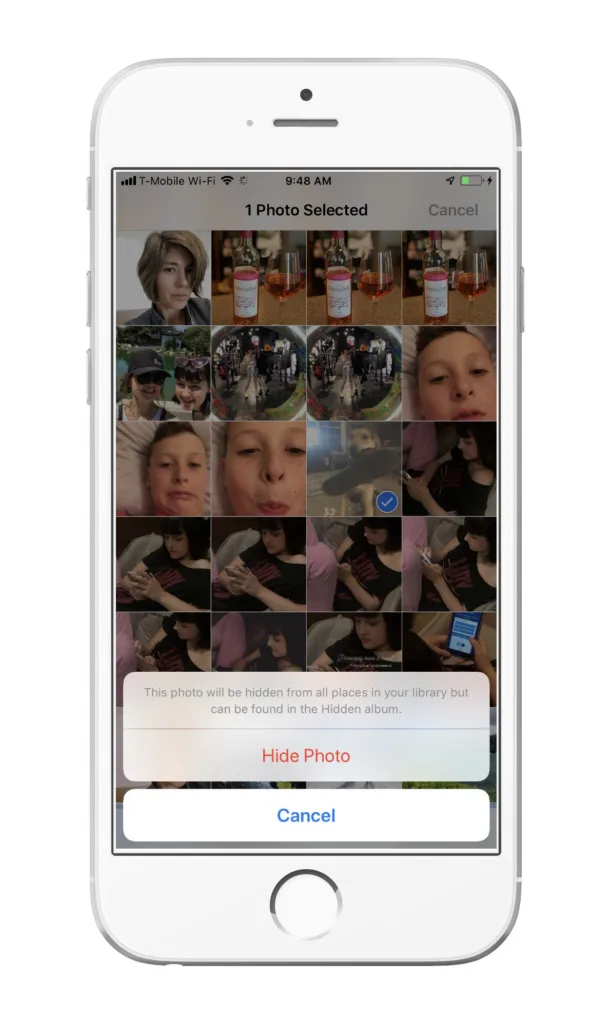 3. Hit Hide Photo. That's it! Then, to unhide any photos, you'll want to go into your "Hidden Folder" to undo this action.
Note: This is imported sample content. Original source.