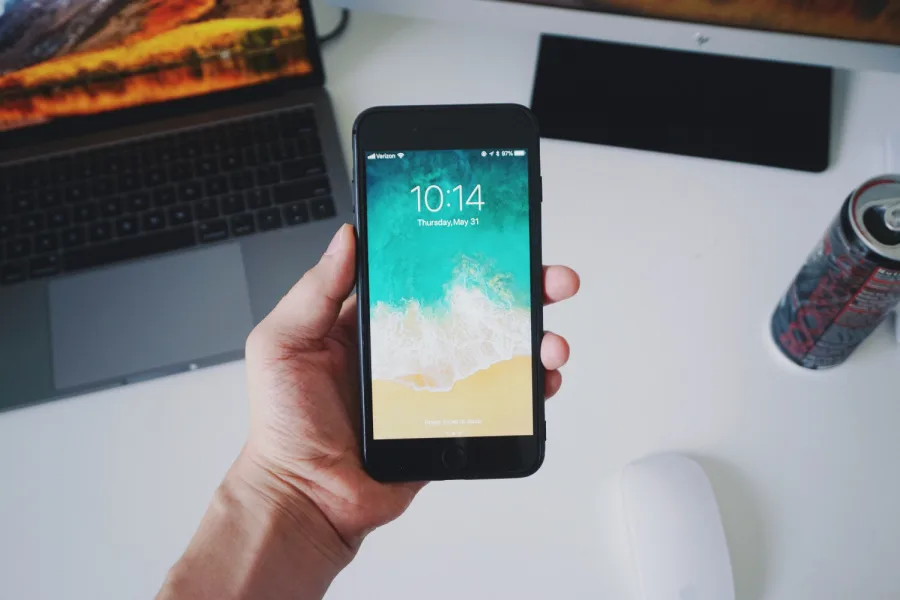
Here's how to use the new Screen Recording feature in iOS 11. It's awesome!
We just discovered a cool, new feature in iOS 11 that you might not have heard about, called Screen Recording, that actually allows you to record your screen (think live screen shot), and even narrate while you do. However, it's a little…
October 9, 2017•2 min read
We just discovered a cool, new feature in iOS 11 that you might not have heard about, called Screen Recording, that actually allows you to record your screen (think live screen shot), and even narrate while you do. However, it's a little difficult to find on your iOS device. Whether you want to send a funny text of you narrating a crazy email you got, or you want to show your dad how to change her iPhone wallpaper, we think this feature is super handy.
Related: How to use do not disturb while driving in iOS 11
How to set up Screen Recording in iOS 11
Related: How to customize your control center in iOS 11
1. Go to Settings > Control Center > Customize Controls 2. Scroll down and press on the red circle (with the white line in the middle) next to Screen Recording 3. Now, swipe up to view your Control Center. 4. Click the circle with the white dot in the middle. 5. After you 3, 2, 1 countdown, you'll be recording your screen! 6. Click the red bar across the top of your screen to stop. 7. If you want to use voice with your Screen Recording, hard press the same button in your Control Center and an option for you to turn on your microphone will pop up. That's it! Top Photo by César Guadarrama Cantú on Unsplash
Note: This is imported sample content. Original source.