If you're getting inundated with Facebook Live notifications like we are, here's how to turn them off, or set them so you're only getting the ones you might actually want to watch. This way, your phone isn't buzzing constantly.
(People really love Facebook Live, huh?)
Related: 8 ways to minimize distractions on your iPhone without turning it off
1. On your desktop (or laptop), head over to your Facebook page, then on the lower right corner of your cover photo, click on the 3 dots, then
Timeline Settings.
2. Then, on the left side click
Notifications.
3. Next, click
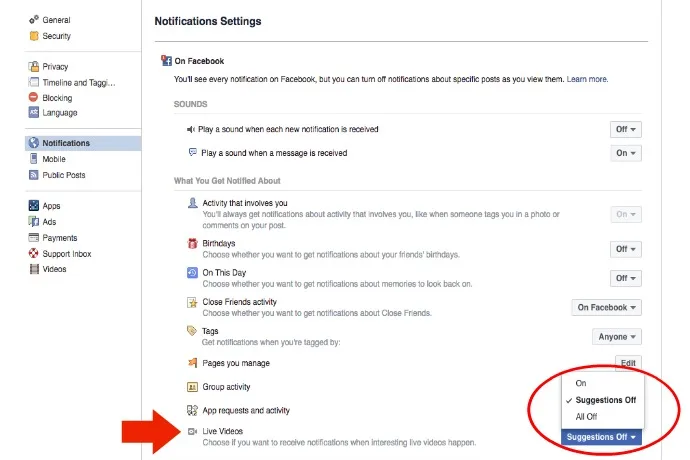
On Facebook, at the top.
4. Scroll down to
Live Videos, and choose
All Off to receive no Facebook Live notifications, or
Suggestions Off if you only want notifications from people and brands that you follow.
Related: 5 simple tricks to help your Facebook posts get seen by more people
It appears that you can now only change these settings on your desktop or laptop (not your phone), but it will only take you less than a minute once you hop online.
 Tips and Tricks
 Causes and Giving Back
 Tips and Tricks